Why Review Requests Need a Controlled Post-Service Workflow
A review request belongs at the end of a controlled service workflow, not at the first status change that looks final. “Appointment ended” only proves time passed; the technician may be delayed, the visit may have been cancelled, or a follow-up repair may already be scheduled. Likewise, an invoice created may reflect billing preparation rather than work the customer has received and accepted.
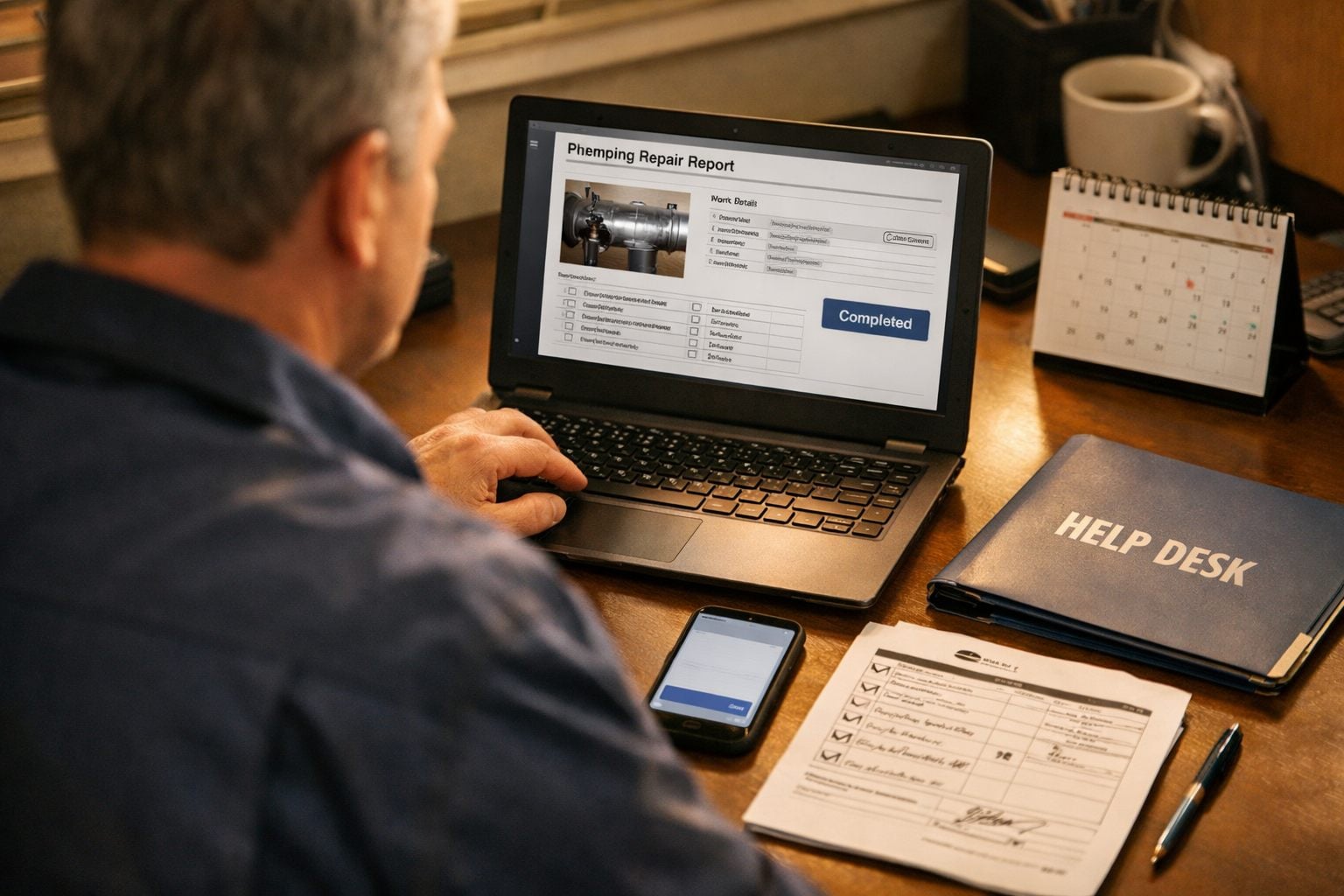
Use a completion standard that combines meaningful signals: for example, a plumbing work order marked complete, no reopening event, and a short window in which the customer can test the repair. That is stronger than a calendar timestamp because it connects the message to delivered service rather than administrative activity.
Reliable automated customer follow-ups also need a pause between completion and outreach. Before sending, screen out cancelled or rescheduled jobs, active complaints or support tickets, reopened work orders, prior sends for the same job, and customers who have opted out. An issue check is a service-recovery safeguard: it prevents an insensitive message while the team resolves a problem, not a filter for asking only presumed-happy customers for public feedback.
The workflow is straightforward: capture source data, detect a trustworthy trigger, apply stop conditions, wait an appropriate interval, send one clear request, and log the outcome. The objective is respectful, dependable review request automation, not a guaranteed rating.
Step 1: Define What Counts as a Genuinely Completed Job
Start by writing a completion rule that your systems can evaluate consistently, rather than relying on an employee’s impression that a visit is finished. A job completion signal is the combination of fields and events that tells the automation service was delivered and is ready for the next stage.

Do not use a calendar end time, technician departure, invoice creation, or a payment attempt as the trigger by itself. Each records an administrative event, not necessarily a finished outcome. For example, an invoice may be generated before a cleaning crew returns for a missed area, while a declined card does not establish whether an HVAC maintenance visit was performed correctly.
Build a stronger rule around the work order status and the evidence required to set it. A plumbing repair might require completed task items, repair notes, photos, and a technician’s completion status. A higher-confidence model adds customer sign-off or a passed internal quality check. Where payment is normally collected at completion, combine a completed work order with confirmed payment, but do not treat payment as universal proof of successful delivery.
- Immediate-result work: A completed cleaning appointment or repaired leak can move forward after required checklist fields are present.
- Outcome-dependent work: Landscaping establishment or a treatment plan may need a later assessment point before the job is treated as ready for outreach.
Make the rule reversible. Store the completion timestamp and trigger version, then withdraw eligibility whenever a closed job is reopened. This creates a clear handoff: source records establish completion first; later workflow stages decide whether and when a message may send.
Step 2: Add Eligibility Checks and Stop Conditions Before Sending
Before a request is queued, run an eligibility gate against the latest records, not just the earlier completion event. This second read prevents a message from going out after a status changes between job closeout and the planned send time.
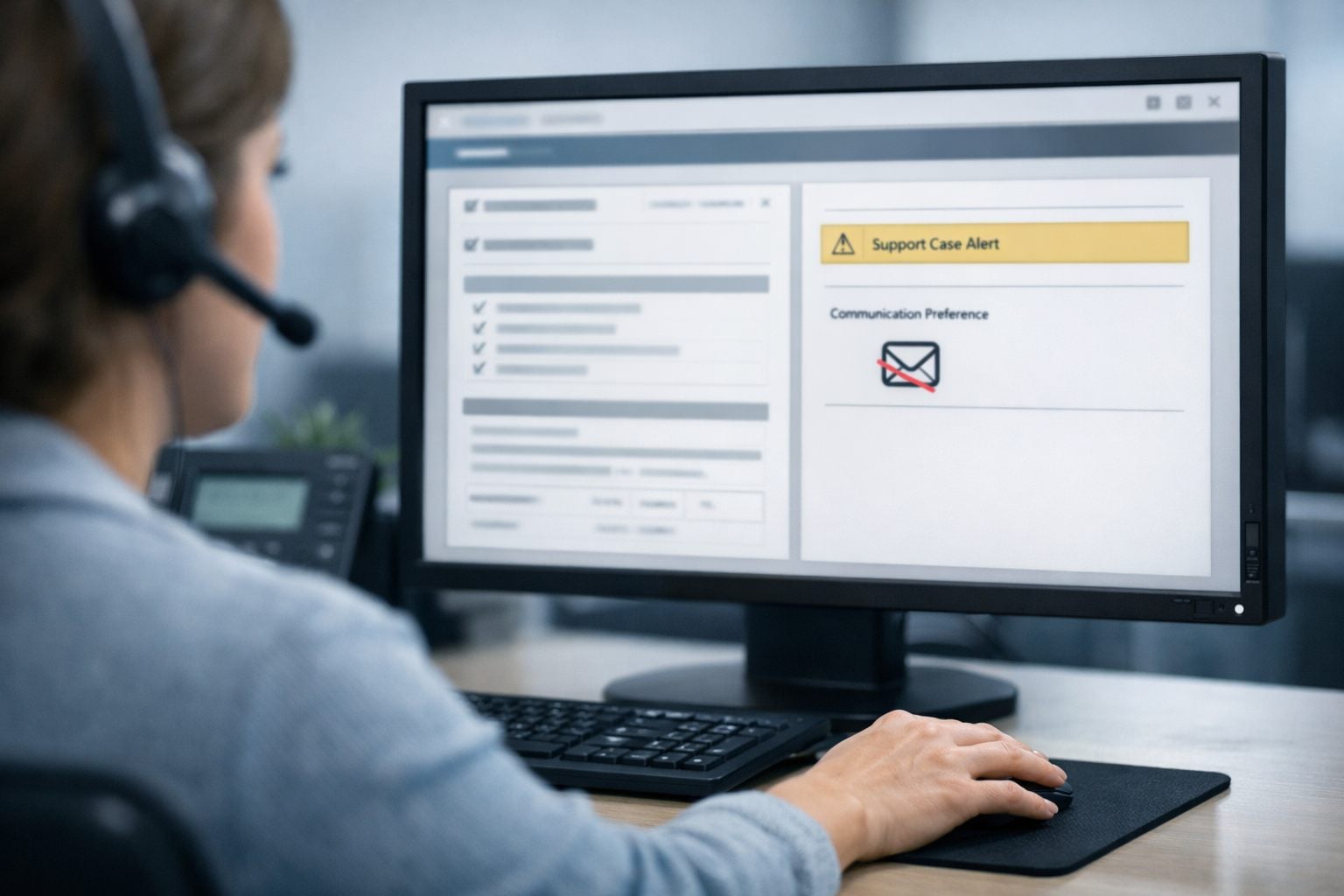
Draw each stop condition from the system that owns it: job and appointment status from field-service software; payment status from billing; and complaint, recovery, or customer support ticket status from the help desk or CRM. A cancellation status ends eligibility for that job. A reschedule means the service is still in motion, while a reopened work order means the prior result is no longer final; both should pause outreach rather than permit it.
- Pause and re-evaluate: an active ticket, an open complaint, a service-recovery case, a rescheduled appointment, a reopened work order, or a failed or disputed payment where settled payment is part of the completion standard. For example, pause a plumbing request while a return visit is being arranged for a recurring leak.
- Permanently suppress: a cancelled job, a do-not-contact record, no permission for the selected email or SMS channel, or an opt-out for that channel. These records should block the message rather than wait for a job-status update.
- Allow after resolution: when the ticket or payment exception is closed, the follow-up work is complete, and the same completion rule is met again. Start the normal message delay from that later qualifying event, not from the original visit.
Use a rule such as: IF completion criteria are true; job is neither cancelled nor rescheduled; work order is not reopened; no active complaint, ticket, or recovery case exists; required payment is neither failed nor disputed; channel permission exists; and no opt-out is recorded, THEN mark the job eligible and schedule one request. ELSE, store the suppression reason and reconsider only when the relevant record changes.
These controls protect service recovery and communication preferences; they must not become review gating. Do not direct customers with an unresolved issue to private feedback while inviting only issue-free customers to post publicly. Resolve the case, then apply the identical eligibility rule regardless of the customer’s likely opinion.
Step 3: Choose the Right Delay, Channel, and Review Request Message
Set the delay from the moment a customer can reasonably judge the result, not from the moment the job record closes. Same-day outreach can fit immediately verifiable work: a completed cleaning appointment, a finished HVAC tune-up, or landscaping whose agreed scope is visible before the crew leaves. Use a longer message delay when the outcome needs observation, for example, a plumbing repair that must remain leak-free, a new installation the customer needs time to use, or a recurring service whose quality is clearer after the next visit. If an inspection or return appointment is part of the work, schedule from its successful completion instead.
Choose the channel already used for service communication and permitted in the customer record. An SMS review request is brief and convenient when the customer has opted into text updates and normally receives scheduling texts. An email review request gives more room for job details and suits customers who receive estimates, invoices, and completion summaries by email. Store the selected channel, consent status, and any opt-out so the workflow does not substitute one channel merely because another is unavailable.
Keep the message specific, neutral, and easy to act on: identify the business and service, link directly to the intended review profile, ask for honest feedback, and include an opt-out path where required. For example: “Hi Maya, thanks for choosing Northside Plumbing for your faucet repair. If you have a moment, we’d appreciate an honest review: [review link]. Reply STOP to opt out of text messages.” Do not mention a desired rating, offer an incentive, or send a reminder until the workflow’s contact limits allow it.
Step 4: Configure the Automated Review Request Workflow
Build the automation as a stateful handoff rather than a one-time message rule. Use the field-service platform to originate the completed-job event, the CRM for contact and communication history, billing and help-desk tools for current exception data, and the automation tool to coordinate each decision and write the result back.
- Trigger: When job
J-1042meets your completion rule, create a workflow record containing the job ID, customer ID, completion timestamp, service type, selected channel, anddelay_untiltime. - Sync: Pull the current email address or mobile number, consent and opt-out fields, payment state where relevant, active-ticket or complaint status, current job status, and prior review-request date. Missing contact data or an incomplete sync moves the record to
hold_missing_data, not the send queue. - Wait: Keep the record in a waiting state until the assessment period ends. The initial trigger starts the clock; it does not permanently approve the request.
- Recheck: Immediately before sending, reread the job, support, payment, consent, and send-history fields. Stop the workflow for a cancellation, reschedule, reopening, active recovery case, changed opt-out, or existing send record.
- Send and write back: Send one request only when eligible. Update both the contact and job records with
review_request_sent, channel, message ID, and sent timestamp.
If a plumbing repair is reopened during the delay, set the outcome to suppressed_reopened_job rather than sending from an outdated queue. Record distinct outcomes for missing data, delivery failures, and API timeouts. Retry a temporary sync failure only by returning to the recheck step; treat an unknown send result as a hold until the message status is resolved.
Keep eligibility rule-based and auditable. AI automation for service businesses can classify replies or route error records, but recorded job, issue, permission, and send-history fields should control the automated review request workflow.
Step 5: Prevent Duplicate, Repetitive, and Insensitive Outreach
Send history needs its own guardrail layer: a valid job should not become permission for repeated prompts. Set a hard limit of one initial request per completed job and store a deduplication key such as job_id + review_platform + request_type. Before sending, search that key for a prior successful or uncertain delivery; an unknown result is a hold, not a reason to send again.
- Cap by customer, not just job: apply a customer-level frequency rule across all jobs, channels, and locations. If a customer received a recent request, suppress the new one even when the current job is eligible.
- Use the right contact identity: link household contacts to a shared household account where possible, so two family members do not receive the same request. For a business account, designate one approved operational contact rather than messaging every site contact.
- Group related work: for a multi-visit repair, trigger only after the final visit or confirmed resolution, not after each technician’s visit. Multiple technicians on one work order still create one request. For recurring cleaning, pool, or HVAC service, use the customer cap rather than treating every visit as a fresh invitation.
Run cancellation logic continuously on queued records. A reopened job, new complaint, active support ticket, cancellation, or reschedule should change the outcome to suppressed_after_queue and prevent delivery. Keep this recovery safeguard uniform; it is not a filter for seeking reviews only from customers expected to respond positively.
An automated customer follow-up system may send one optional reminder only when the initial message was delivered, no review is recorded, preferences remain valid, no issue has appeared, and both the job and customer-level limits still allow it. Log the reminder separately and never create an endless reminder sequence.
Step 6: Test, Monitor, and Improve Without Manipulating Feedback
Before releasing the workflow across the full customer base, run it on internal test records or a small, manually reviewed group of completed jobs. Inspect the log for each decision: source status, completion timestamp, eligibility result, delay, suppression reason, channel, delivery result, and deduplication key. A plumbing repair marked complete and left unreopened should enter the scheduled-send path; a canceled appointment, reopened work order, active complaint, or opted-out contact should finish in a named suppression state instead.

- Test exceptions deliberately: create normal, canceled, rescheduled, reopened, complaint-linked, failed-delivery, and opted-out scenarios. This quality assurance check tests whether each record follows its intended branch before live volume makes defects harder to isolate.
- Measure contact accuracy: track delivery failures, opt-outs, complaint-related suppressions, duplicate-send incidents, and jobs reopened after a request. Treat a false send as a workflow defect: identify which field, sync, or rule allowed it, then correct that condition.
- Audit the decision trail: periodically sample both sent and suppressed records against the underlying job and support data. Update ambiguous status mappings, stale contact fields, or timing rules revealed by the sample.
Where available, use review-link clicks or completed-review signals to evaluate message clarity and timing, not to promise rating gains. Improve automated review requests through cleaner data and clearer wording while applying the same public-review-link rule to every eligible customer; predicted sentiment and prior feedback must not determine access.
A Practical Launch Checklist for Reliable Review Requests
Use this final configuration checklist before enabling production sends:
- Define the trigger: require a completed work order plus an assessment hold; do not let an appointment end time alone release a request.
- Configure suppressions: block canceled, rescheduled, reopened, disputed, complaint-linked, open-ticket, duplicate, and opted-out records.
- Set delay and channel: align the wait with when the service can be assessed, then select only the customer’s permitted contact channel.
- Use one neutral message: identify the service, provide one direct review link, and invite honest feedback without filtering by predicted sentiment.
- Cap outreach: allow one request per job and only a conditional reminder within the customer-level contact limit.
- Recheck before delivery: cancel queued messages when job, issue, preference, or contact data changes.
- Retain the record: log the trigger, decision path, delivery result, and suppression reason for routine sampling.
An automated review request workflow should function as dependable customer-care and reputation operations, not as a shortcut to better ratings.
Frequently Asked Questions
-
What is the best trigger for an automated review request after a service job?
Use a verified completion rule, such as a completed work order with required task items, technician notes, photos, and no reopening event. Do not trigger from an appointment end time, invoice creation, or payment attempt alone.
-
How long should a service business wait after a completed job to ask for a review?
Wait until the customer can reasonably assess the result. Same-day requests can work for immediately verifiable services like cleaning or HVAC tune-ups, while plumbing repairs, installations, and recurring services need a longer observation period.
-
How do you stop review requests when a customer has an unresolved complaint?
Recheck the latest help-desk, CRM, job, billing, and consent records immediately before sending. Pause or suppress requests for active tickets, open complaints, recovery cases, reopened work orders, reschedules, cancellations, failed required payments, and opt-outs.
-
What information should be included in an automated review request?
Identify the business and completed service, include one direct link to the review profile, and ask for honest feedback. Use only a permitted channel, such as opted-in SMS or the customer’s service email, and include an opt-out path where required.
-
Should a business ask only satisfied customers for reviews or send reminders after every job?
No. Apply the same public review request rule to every eligible customer after issues are resolved, rather than filtering customers by predicted sentiment or likely rating. Limit outreach to one initial request per completed job, use a customer-level frequency cap, and send at most one conditional reminder when delivery, preferences, issue status, and contact limits allow it.