What Automated Service Reports Should, and Should Not, Do
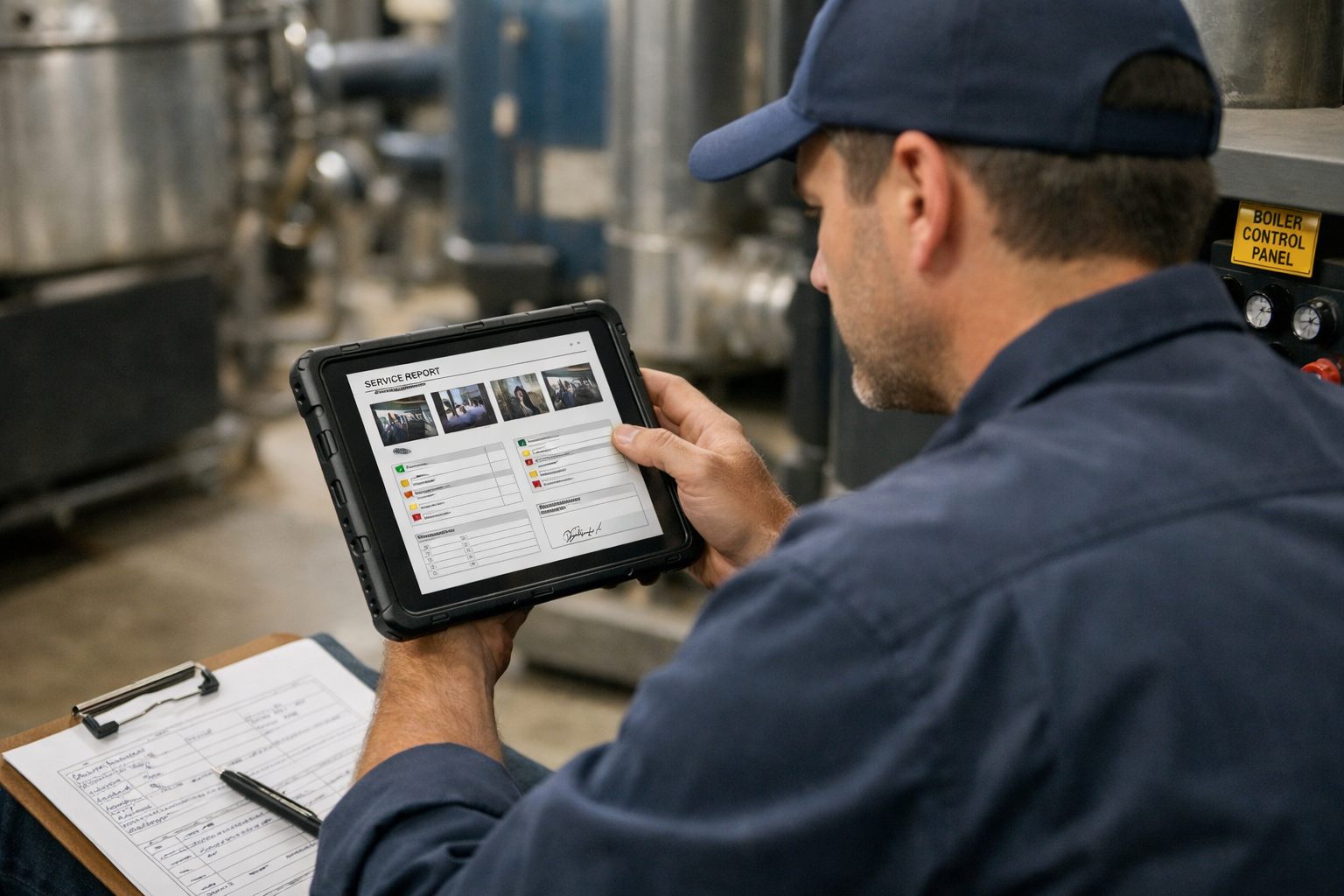
A completed work order often leaves office staff to copy notes, place photos, reconcile parts and readings, and format the same customer summary repeatedly. The useful boundary is to remove that assembly work and produce a consistent draft, not to transfer responsibility for what happened on site to generic AI output.
Drafting means pulling the completed work order’s customer and asset details, checklist results, readings, labor, parts, timestamps, technician notes, and labeled photos into the right report sections. Validation means the technician compares that draft with the job record: a failed inspection item must not read as passed, a photo must match its caption, and a missing reading must remain visible rather than be guessed. Approval is the accountable decision to release the report; sending is the separate delivery step by email, portal, or customer record.
Use human-in-the-loop review as the delivery gate. Required fields should block an incomplete draft, conflicting entries should create an exception for correction, and the workflow should retain the source record and approval history. Start by measuring report turnaround time, missing-field rate, and customer-requested revisions. AI automation for service businesses is working when it reduces back-office formatting and follow-up while the person closest to the work still confirms the facts.
Start With a Minimum Job Data Standard
Every reportable visit needs the same factual spine. Configure the work order so technicians capture it once in the field, rather than asking office staff to reconstruct it from texts, calls, and incomplete technician notes. Structured fields hold facts that must be reliably placed or compared; free-text notes preserve the circumstances and explanation that a checkbox cannot capture.
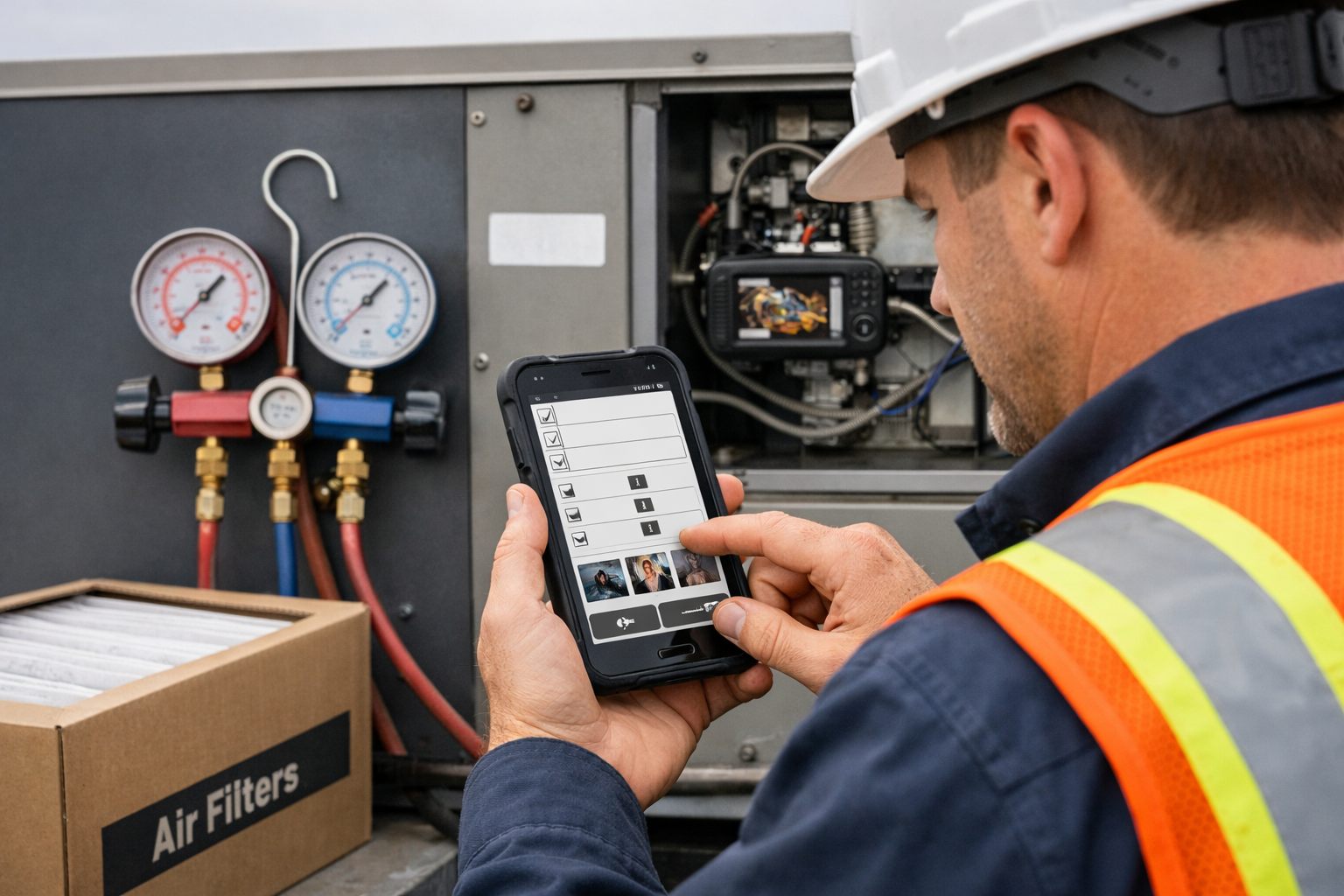
For a standard service visit, make the following inputs part of the minimum job data standard before report generation:
- Customer and site: customer name, service address, on-site contact, and job number.
- Asset: equipment type, make, model, serial number or internal asset ID, and its location on the property.
- Reason for visit and work completed: select a problem category, then record the diagnosis and corrective work in plain language.
- Inspection results and readings: use pass/fail/not-applicable checklist items and dedicated numeric fields for measurements, with units.
- Labor and materials: arrival and departure timestamps, labor hours, parts used, quantities, and part numbers where available.
- Closeout evidence: recommendations or follow-up actions, customer or technician signature, and labeled before-and-after photos.
A reading of “18 psi” belongs in a numeric pressure field with its unit; “pressure restored after clearing blockage” belongs in the narrative. This distinction lets the system place the reading in a results table while using the note to create a readable visit summary. A weak record says “fixed unit”; a usable one identifies the asset, reported fault, action taken, measured result, and any recommended next step.
Set a completion gate for the fields that every report requires: customer and site, asset, completed-work description, checklist outcome, time record, and signature. Require photos and readings only for job types where they are meaningful, but label each photo by asset, condition, and before-or-after status. If a required value is blank, a checklist item conflicts with the narrative, or a photo lacks context, hold the work order for correction instead of producing a polished but incomplete report.
Build a Report Template That Maps Every Field Input to a Customer-Friendly Section
Design the report as a fixed reader journey, not as a dump of work-order fields. A customer-facing report should begin with identity and outcome, then show the supporting details in the order a customer is likely to need them.
- Visit summary: map the job number, visit date, customer, site, asset, reason for visit, and a concise outcome statement. For example, “Responded to low-pressure complaint on Roof Unit 2; cleared blockage and restored pressure.”
- Work performed and inspection findings: place technician actions beside the relevant checklist results. Keep an observed fact, “drain line blocked”, separate from the action, “cleared drain line and tested flow.”
- Readings, parts, and labor: render numeric fields with units in a measurements table; pull part number, description, and quantity into a materials table; use timestamps or approved labor entries for time on site.
- Photo evidence: insert labeled photos under the asset and condition they document, such as “before: blocked drain line” and “after: drain line cleared.” A filename alone is not useful evidence.
- Recommendations, acknowledgment, and next steps: use the recommendation field for suggested future work, the signature or acknowledgment record for customer acceptance, and the follow-up field for a scheduled return visit or monitoring instruction.
Give every generated narrative sentence a source reference in the draft’s internal view: a field name, checklist item ID, note entry, reading record, or photo label. “Pressure restored to 18 psi” should link to the pressure field; “corrosion observed” should link to the inspection response and photo. This makes automated field service reports reviewable rather than merely polished.
Keep the external layout simple, but retain those links in the job record and report audit trail. A reviewer can then distinguish documented observations from recommendations, correct an unsupported sentence, and preserve the completed report as useful asset history.
Use AI to Assemble and Clarify the Draft, Not Invent the Facts
Use the completed-work-order status as the report trigger. At that moment, create a read-only draft snapshot containing the approved customer and asset details, completed checklist responses, readings, labor and parts entries, technician notes, timestamps, signatures, and labeled attachments. A snapshot prevents later edits to the live work order from silently changing a draft that is already awaiting review.
Populate fixed sections with deterministic rules first. Insert the visit date from the date field, measurements from their recorded values and units, materials from approved line items, and photos only where their labels match the relevant asset or condition. These are direct placements, not writing tasks: the system should reproduce recorded data rather than interpret it.
Then apply AI-powered workflow optimization to the limited narrative work. Give the model only the snapshot and a tightly defined output format. It can turn “cleared drain line; tested flow; pressure 18 psi” into a customer-ready work summary, group related observations under an inspection heading, and convert a failed checklist response plus a technician explanation into plain language. This is where AI-generated service reports can reduce assembly effort without turning the model into a field witness.
- Allow: summarizing supplied notes, standardizing tense and terminology, organizing findings by asset, and stating recorded checklist outcomes in clear customer-facing language.
- Block: estimating a missing reading, treating an unlabeled photo as proof of a condition, inferring a completed repair from a recommendation, or making a compliance, warranty, or safety statement that is absent from the job record.
Build those boundaries into the instruction itself: “Use only supplied fields and attachments. Do not add measurements, causes, test results, certifications, or claims. For every missing, ambiguous, or conflicting item, write Reviewer action required and identify the source field.” Require the output to preserve internal source links for each narrative sentence. The result is a constrained draft that a technician or supervisor can correct and approve, not an autonomous account of the visit.
Add Validation Rules, Technician Review, and Exception Routing Before Delivery
A draft containing Reviewer action required should enter a controlled review state, not a delivery queue. Apply data validation before anyone reads the prose: block the report when the asset ID, customer/site, technician identity, signature, required reading units, or reason for a failed checklist item is missing. For example, “18” without “psi” cannot populate a pressure result. Flag, rather than automatically reject, a reading outside the expected range for that asset or job type so the technician can correct a transposed value or record why the result is unusual.
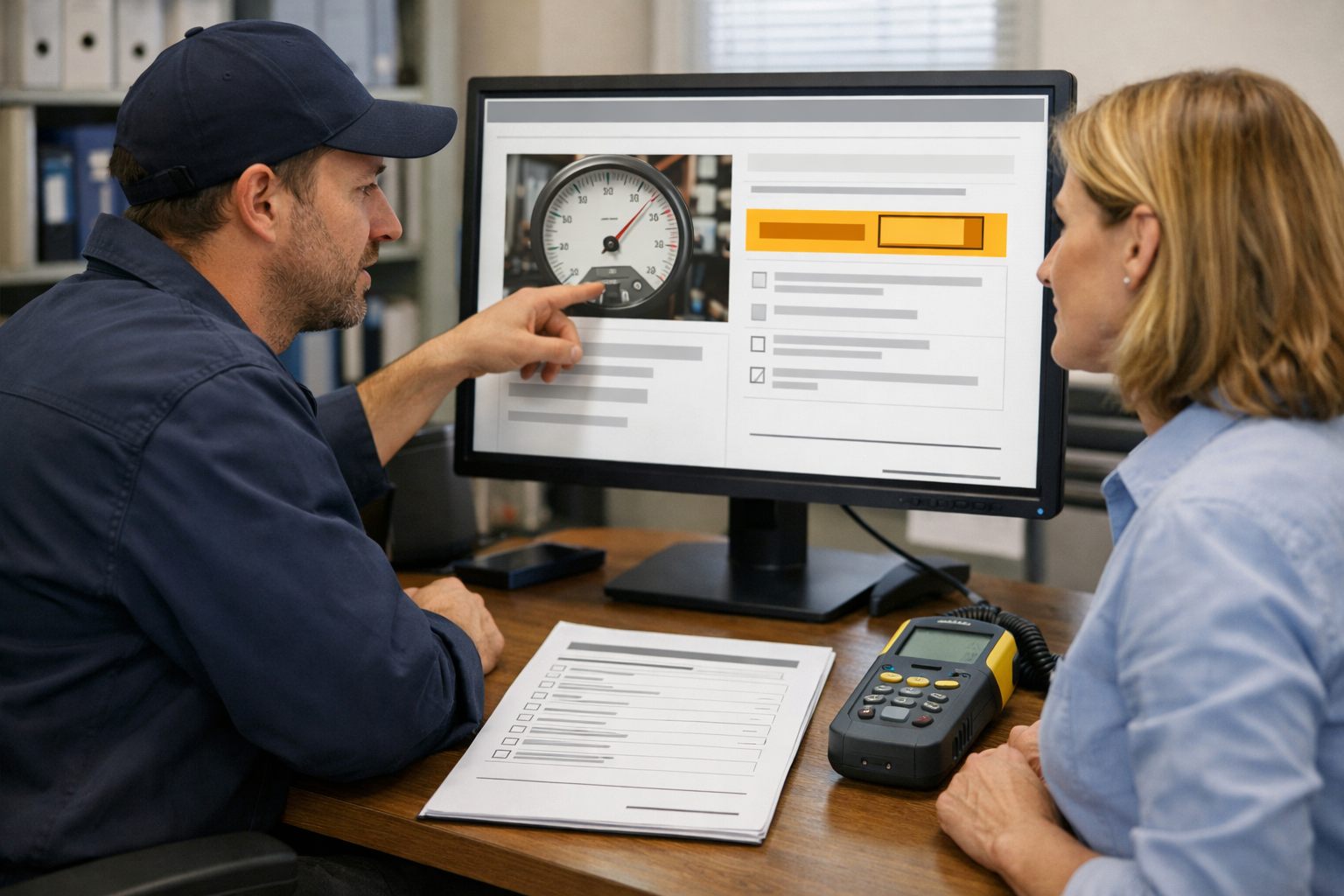
- Cross-check the record: a checklist marked Pass should not coexist with notes such as “leak remains” or “repair recommended.” The reviewer must change the checklist outcome, revise the note, or add an explanation that resolves the conflict before report approval.
- Check photo relevance: require each image selected for the report to carry an asset, condition, and timing label, such as AHU-2 / corroded coil / after. An unlabeled attachment may remain in the work order, but it should not be presented to the customer as evidence of a specific condition.
- Review the customer draft: the technician edits unclear wording, confirms the displayed readings, parts, and photos against the job snapshot, then signs the report. This human-in-the-loop review ties the field technician to the final account of the visit.
Require manager approval for higher-risk records: failed inspections, unresolved defects, readings flagged as exceptional, quoted follow-up repairs, warranty-sensitive work, or a generated conclusion the technician materially changed. The manager is deciding whether the explanation, recommendation, and next action match the recorded evidence; this is a second report approval gate, not a request to reconstruct the job.
Send incomplete and conflicting records to an exception queue with a specific reason, assigned owner, and due status, for example, missing failed-item explanation or note/checklist mismatch. Preserve the source-data version, each editor, technician signature, manager approver when required, approval time, and delivery status in the audit log. Customer email or portal delivery may trigger only after an authorized approval step; a completed work order, generated PDF, or technician submission is not permission to send.
Connect the Right Systems and Protect Customer, Photo, and Job Data
Assign one system of record to each report input so the workflow does not choose between competing copies. Use the field-service platform or mobile form for work-order status, checklists, readings, labor, notes, and labeled photos; use the CRM for customer and site contacts; use the asset register for asset history; and use inventory records for parts used. Pass a read-only snapshot into the document generator, then route the approved PDF, not the editable job record, to e-signature and customer delivery.
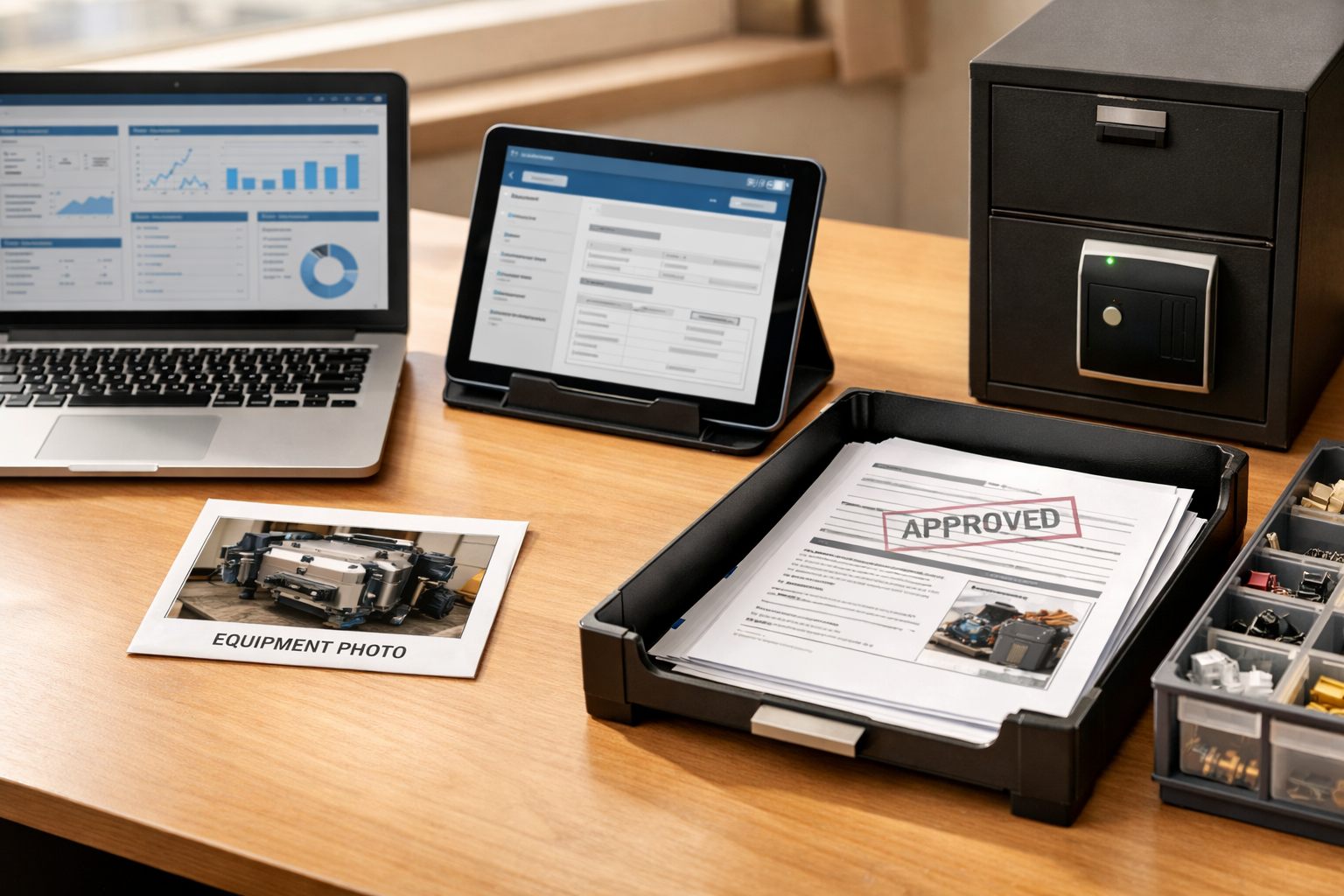
- Technicians: create and label job evidence, but cannot alter customer master data or an approved report.
- Managers and office staff: resolve exceptions, approve reports, and correct records within their assigned accounts or territories.
- Customers: receive only their completed report through an addressed email or a portal link limited to that report.
- Automation and AI services: receive only the fields and attachments selected for the draft. Exclude internal pricing, payment details, unrelated notes, and unselected attachments.
Put the boundaries in a written photo and data-handling policy. Define permitted job photos, the method for recording consent when required by the engagement, permitted viewers, redaction triggers for faces, screens, addresses, badges, or credentials, and the retention and deletion schedule for originals and final reports. Apply the same schedule across the job record, document store, and processing workflow. Role-based permissions, access logs, secure storage, and written vendor terms covering data use, storage, deletion, and model-training restrictions keep automated business operations controlled rather than turning report generation into a broad data export.
Pilot One Job Type, Measure Quality, Then Scale Service Report Automation
Begin where variation is lowest: one high-volume, repeatable category such as a routine maintenance visit. It gives the team enough similar jobs to expose weak inputs without mixing in the different inspections, attachments, and approval paths of complex repair work.
- Baseline the current process: record time from job completion to approved delivery, manual handoffs, missing-detail corrections, and approval turnaround.
- Configure that category’s checklist, required readings, photo labels, template, draft trigger, and reviewer rules. Run the automated draft alongside the existing process for a monitored set of jobs.
- Ask technicians whether the draft reflects site work and ask customers whether the report is clear, complete, and useful. Group recurring exceptions, such as unlabeled photos or vague notes, then fix the form, rule, or template that caused them.
Scale only after report accuracy holds while assembly time, missing details, and approved-delivery time improve. Add the next service line with its own baseline and controls. The practical next step is to automate a controlled draft-and-approval workflow for one repeatable service category before expanding.
Frequently Asked Questions
-
What information should be included in an automated field service report?
Include customer and site details, job number, asset make, model, serial number or asset ID, reason for visit, work completed, checklist outcomes, readings with units, labor, parts, signatures, recommendations, and labeled photos. Each photo should identify the asset, condition, and whether it was taken before or after the work.
-
Can AI turn technician notes into customer service reports?
AI can turn supplied technician notes into a clear customer-facing work summary, organize findings by asset, and standardize terminology. It must use only the completed work-order snapshot and cannot invent readings, test results, repair outcomes, certifications, causes, or safety claims.
-
How do technicians review AI-generated service reports before sending them?
Technicians should compare the draft against the read-only job snapshot, confirm readings, parts, checklist outcomes, and photos, then edit unclear wording and sign the report. Missing, ambiguous, or conflicting information should display “Reviewer action required” and enter a controlled review state instead of being sent.
-
How do you prevent errors in automatically generated field service reports?
Block reports with missing customer or asset details, technician identity, signature, required reading units, or failed-checklist explanations. Cross-check notes against checklist results, flag out-of-range readings for review, and retain source-data versions, approvals, editor history, and delivery status in an audit log.
-
What should field service companies look for when choosing a service report automation workflow?
Choose a workflow that uses one system of record for each input, creates a read-only work-order snapshot, maps fields to fixed report sections, and requires technician approval before delivery. Start with one repeatable job type, such as routine maintenance, and scale only after report accuracy improves while assembly time, missing details, and approved-delivery time decrease.